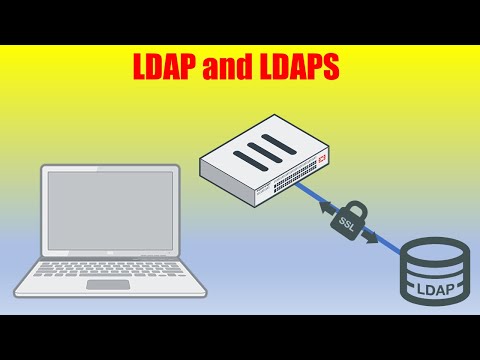
Securing LDAP over SSL Safely [Windows Server 2019] NOTE: You do not need to install the Active Directory Lightweight Services role for LDAP over SSL to be used. Feel free to skip that part of the video. If you have installed the role already it is safe to remove it. I (tobor), cover the configuration, templates, group policy, and reasons for configuring LDAP over SSL in your domain environment. I also cover the process to go through in order to set up LDAP over SSL without breaking connection with clients or the server. If you like what you see please Subscribe! SCRIPT TO AUTO-RENEW AND UPDATE LDAPS CERT ENABLE LDAP LOGIN COMMAND # ON POWERSHELL New-ItemProperty -Path "HKLM:\SYSTEM\CurrentControlSet\Services\NTDS\Diagnostics" -Name "16 LDAP Interface Events" -Value 2 # OR IN CMD Reg Add HKEY_LOCAL_MACHINE\SYSTEM\CurrentControlSet\Services\NTDS\Diagnostics /v "16 LDAP Interface Events" /t REG_DWORD /d 2 After some time goes by (So you can ensure the policy is applied to all devices on the domain that may not be currently on such as laptops) Make sure you do not see any reports of unsigned connections in your Domain Controllers Event Log. - Event ID 2085 LDAP over SSL Connection could not be established with client - Event ID 2889 logged each time that a client computer attempts an unsigned LDAP bind 0:00 Intro Summary 0:17 Why confgure LDAP over SSL 0:37 Do NOT block LDAP communication 1:39 THIS PART NOT REQUIRED - Installing AD LDS Service on the server 2:24 THIS PART NOT REQUIRED - Begin Setup Wizard for AD LDS 4:16 THIS PART NOT REQUIRED - Define a service/user account to run AD LDS as 6:25 Finished installed 6:34 Create a Certificate Template to use for LDAPS 6:57 Duplicate Kerberos Authentication Template and set configuration 9:30 New Certificate Template to issue 9:53 Enroll and Assign Assigned LDAPS Certificate to the AD LDS Service 10:29 Force DC Replication to access new certificate template quickly 11:12 Export newly assigned certificate with the private key 12:50 Import Certificate in NTDS and ADAM_LDAPS services store 15:23 Restart the AD LDS Service 16:05 Current / Default Group Policy Settings 16:58 Configuring Clients to Negotiate LDAP signing 17:51 Open GPO Management Center and Create Policy 18:25 Configure Client GPO for Negotiate Signing 19:38 Test Client Communication with Domain Controller 20:10 Domain Controller Event Log Section Start 20:38 Enable LDAP logging on the domain controller 21:16 Watch Domain Controller Event log to discover LDAP usage 22:15 Event ID 2889 23:24 Common LDAP over SSL connection issue with external apps 24:07 After correcting errors change GPO setting on CLIENTS ONLY to Required signing 25:27 Verify new setting applied 25:57 DC Value is still set to "None" in Default DC Policy 26:48 Test Client Communication with DC again 27:09 Keep an eye on the DC event logs again 27:48 Configure the Default Domain Controller policy to "Required signing" 28:16 Testing LDAPS connections on Domain Controller with 29:36 Showing you the client LDAP Signing Requirements config setting 30:00 DO NOT DISABLE LDAP 30:14 Verify Domain Controllers new GPO settings applied 30:38 Do a client to server test with DC and Desktop on Require Signing 30:56 to verify DC is requiring LDAP over SSL 32:06 SSL Certificate Selection by the Domain Controller 33:07 Thanks for watching INFORMATIONAL LINKS - - - - - View my Verified Certifications! Follow us on GitHub! Official Site Give Respect on HackTheBox! Like us on Facebook! View PS Gallery Modules! The . Security Package
- 48073Просмотров
- 4 года назадОпубликованоOsbornePro TV
Securing LDAP over SSL Safely [Windows Server 2019]
Похожее видео






Популярное
Новини